The 10-DAY CHALLENGE
HELP US MAKE IT BETTER
Your feedback ensures the Challenge keeps engaging students — and supporting teachers — in the best possible way.
Click the button below to answer a quick question and find out what's next for your students.
WHAT YOUR STUDENTS SAID
Check out the Challenge Wrap with comments from students who completed the climb.

VIEW ALL CLASS CERTIFICATES
Open your class's Certificates pdf so you can print as a batch
MOUNTAIN TRACKER
TRACK YOUR STUDENTS
Track students on the climb as they make their way to the summit. You can also generate a class report showing your students' progress up the mountain.
STUDENT ACCESS CODES
This is where it all begins. Print your classroom’s Access Code report below — with a slip for each student.Each slip gives the student's access code to the game when the Challenge kicks off.👉 Print two copies: One for your records, and one to cut into slips to stick in students' books.
Show students why Smart Tables focuses on just 36 facts and why triangles are so useful.

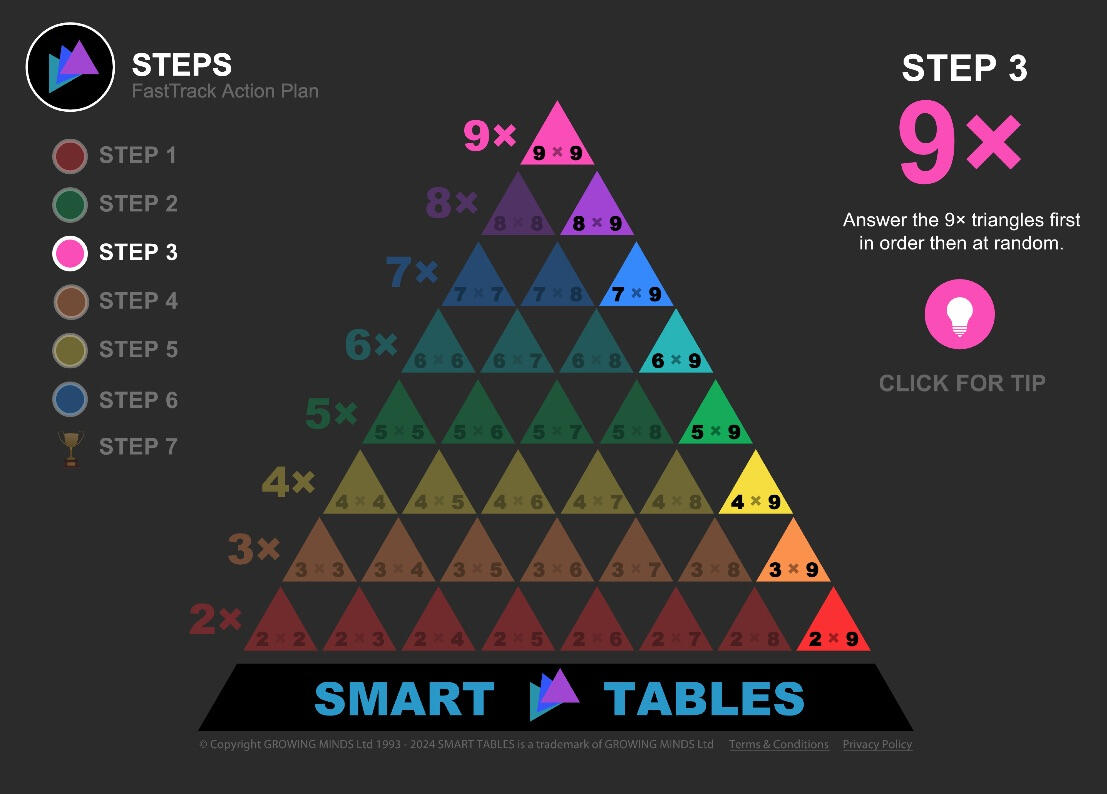
Explore the Smart Tables patterns and preview the Fast-Track steps with this teacher interactive.
FAQS and SUPPORT
How many minutes each day?
We recommend around 10–20 minutes each day of climbing. There are suggested break markers in the game which make an ideal moment to pause and take a rest.
What devices are required?
The Fast-Track game runs in any web browser on laptops or tablets — no special software needed. Devices can be shared: students simply sign-out before the next student signs-in.
How do I add another student?
Use the same ‘Upload Students’ link from your earlier emails to upload just that student. Their access code will then appear on your Teacher Dashboard report.
How do I find a students location?
Click the green CLASS REPORT button in the Mountain Tracker section of your Teacher Dashboard. This generates a PDF showing the live location of all your students.
How do students SIGN-IN?
Students can sign in at smarttables.app using their individual access code once the Challenge begins. They'll stay signed in on their device for 10 days, but can sign out at any time if devices are being shared.
Can students continue at home?
Yes. Students can use their access codes to sign in on a computer or tablet at home. They’ll pick up right where they left off at school, with their progress saved across all devices.
How can students reset the game?
Students can reset the game to any earlier step by clicking the triangle logo next to their name. This can be especially helpful if they’re finding the timed Mastery stage (Step 7) challenging and want extra practice.
How do students SIGN-OUT?
If devices are shared in the classroom, it's important for a student to SIGN-OUT before the next student signs in. They SIGN-OUT by clicking the triangle logo button next to username and select SIGN-OUT from the dropdown menu.
How can parents follow along?
We’ve created a special page where parents can track their child’s progress up the mountain and get information for continuing the climb at home. Share this link with your parents: sherpas.smarttables.co
What if students finish early?
Students who finish ahead of time can replay the final 3-minute timed stage to try and beat their personal best. They can also reset the game to any earlier step by clicking the triangle logo next to their name.
Have more questions?
Send an email to [email protected] and we'll be happy to help.

© Copyright 1993 - 2025 Growing Minds Ltd. Smart Tables is a trademark of Growing Minds Ltd. Terms & Conditions Privacy Policy